Viewing Request Details
Each classification request in the History table includes a View button that opens a detailed modal with complete information about that specific classification. Use these details to troubleshoot issues, verify results, or reference specific requests in support communications.
Opening Request Details
Click the View button in the rightmost column of any History table row. A modal dialog appears with the complete classification information for that request.

Available Information
The request details modal displays six key pieces of information:
Date
The exact date and time when the classification request was made, displayed down to the second.
This timestamp helps you correlate classifications with specific events, debugging sessions, or batch imports.
Category
The selected category shown in the format: Category ID - Category Path
Example: 267 - Electronics > Communications > Telephony > Mobile Phones
This combines:
- The unique category identifier (for programmatic use)
- The full hierarchy showing the category’s position in the taxonomy
If no category was found (categoryFound: false), this field displays “No category found.”
Product Description
The complete product description that was submitted for classification.
Copy functionality: Click the copy icon to copy the full product description to your clipboard. This is useful when you want to:
- Test the same product again with different settings
- Share the description with your team
- Reuse the description in documentation or bug reports
Display: Only the first 300 characters are shown in the modal for readability. The full description is always copied when you use the copy button, regardless of length.
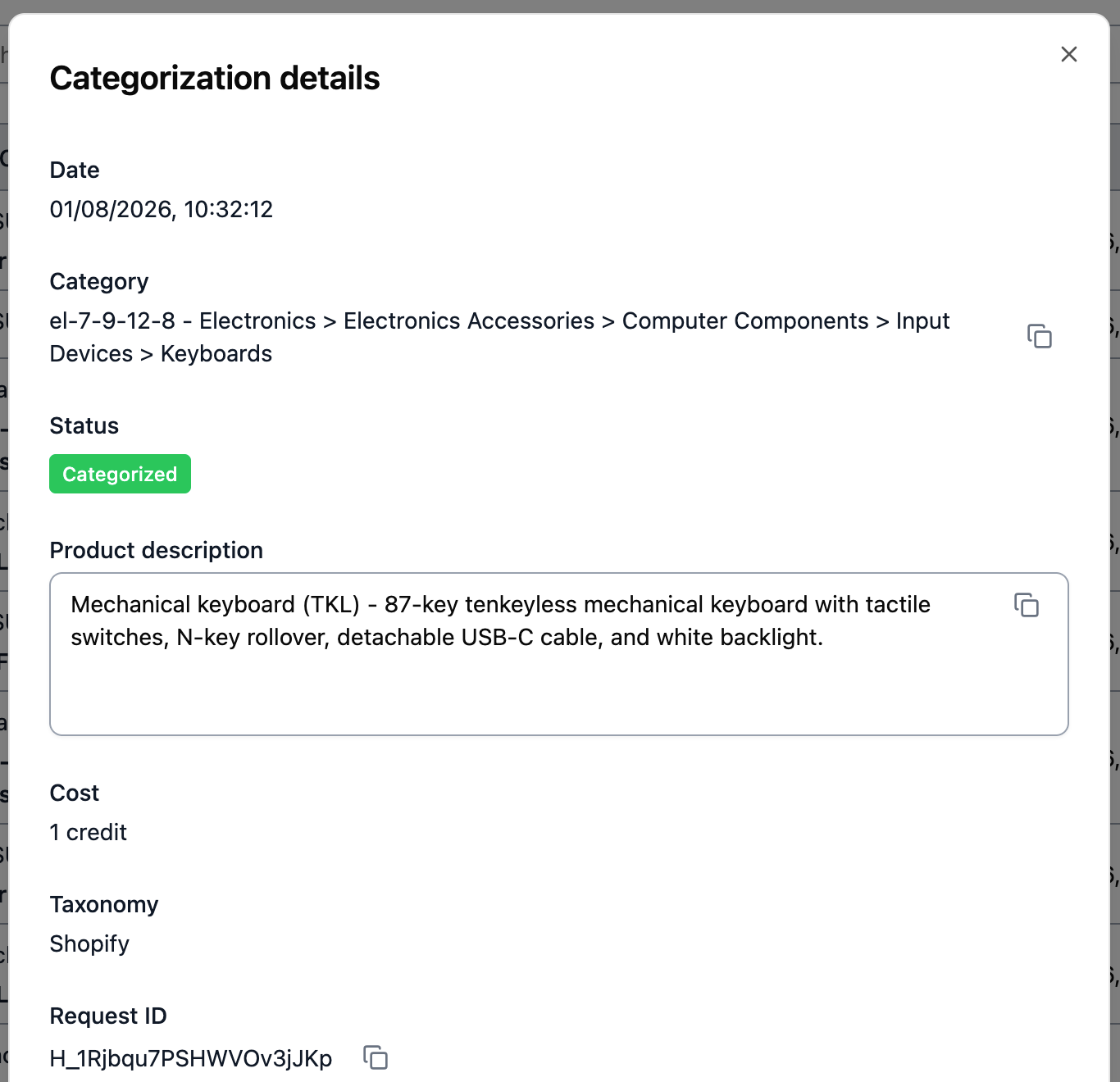
Cost in Credits
Shows how many credits were deducted for this classification.
Almost always displays: 1 credit
One classification request consumes one credit from your account balance, regardless of:
- Whether a category was found
- Which taxonomy was used
- Whether custom instructions were applied
- The confidence level of the result
The only time credits aren’t deducted is when you receive an error (like HTTP 429 rate limit or HTTP 403 insufficient credits), which prevents the request from being processed at all.
Taxonomy
Indicates which product taxonomy was used for this classification.
Options:
- Shopify - Shopify Standard Product Taxonomy
- Google - Google Product Taxonomy
This helps you verify that the correct taxonomy was applied, especially when classifying the same products into multiple taxonomies for different sales channels.
Request ID
A unique identifier for this specific classification request.
Use cases:
Finding requests later: Use the Request ID filter in the History page to quickly locate this exact request again, even after weeks have passed.
Support communications: Include the Request ID when contacting support about classification issues. This helps the support team immediately locate your specific request without needing screenshots or descriptions.
System integration: If you’re logging API responses in your own systems, store the Request ID to cross-reference between your logs and Product Classifier’s History.
Debugging: When investigating patterns in classifications, note Request IDs of problematic results to compare settings, descriptions, and outcomes.
[Screenshot: Close-up of Request ID field with copy button]
Common Use Cases
Troubleshooting Unexpected Results
When a classification doesn’t match your expectations:
- Click View to see the details
- Check the product description—does it contain enough information?
- Note the taxonomy—was the correct one used?
- Copy the description to test in the Playground with different settings
- Use the Request ID in support communications if needed
Verifying Batch Import Results
After running a bulk classification:
- Filter History by date range and source
- Spot-check results by viewing details of various classifications
- Note Request IDs of any incorrect results
- Use the product descriptions to identify patterns
Comparing Settings Impact
To see how settings changes affect results:
- Classify a product with one configuration
- Note the Request ID and result
- Classify the same product with different settings
- Compare the two Request IDs’ details to see the impact
Building Documentation
When documenting your classification approach:
- View details of representative successful classifications
- Copy product descriptions as examples
- Reference Request IDs for specific cases
- Document which taxonomy and settings produced the best results
Limitations
History Retention
Request details are only available for classifications from the last 45 days. Older requests are deleted and their details cannot be retrieved.
If you need long-term request tracking, consider:
- Logging API responses in your own system
- Exporting History data periodically for archival
- Storing Request IDs in your application database
No Editing
The details modal is view-only. You cannot:
- Edit the product description
- Change the taxonomy
- Rerun the classification from this modal
To test variations, copy the product description and use the Playground or make a new API request.
Settings Not Displayed
The details modal shows the results but not the settings used for the classification (custom instructions, leaf-only mode, top-ranked fallback).
If you need to know what settings were applied:
- Check your API integration code for programmatic requests
- Review your Playground settings if classified there
- Check your MCP server configuration if classified through MCP
Next Steps
- Understanding Status Indicators - Learn what the colored indicators mean and how to interpret confidence levels
- Filtering & Searching Requests - Find specific requests quickly using Request ID and other filters
- Understanding Classification History - Overview of the History page and all available features
- Using the Playground - Test products with different settings to improve results