Auto-recharge setup
Auto-recharge automatically purchases additional credits when your balance runs low, preventing service interruptions. This ensures continuous access to Product Classifier without manual intervention.
Why Auto-Recharge Matters
When your credit balance (both monthly and purchased credits combined) reaches zero, the API returns an HTTP 403 error and stops processing classification requests until you take action.
Auto-recharge prevents this by automatically purchasing a credit package when your balance drops below a threshold, ensuring uninterrupted service.
Setting Up Auto-Recharge
Step 1: Navigate to Billing
Go to the Account / Billing page in your dashboard. Locate the Credit Balance section.
Step 2: Enable Auto-Recharge
Check the Auto-recharge credits checkbox to enable automatic credit purchases.
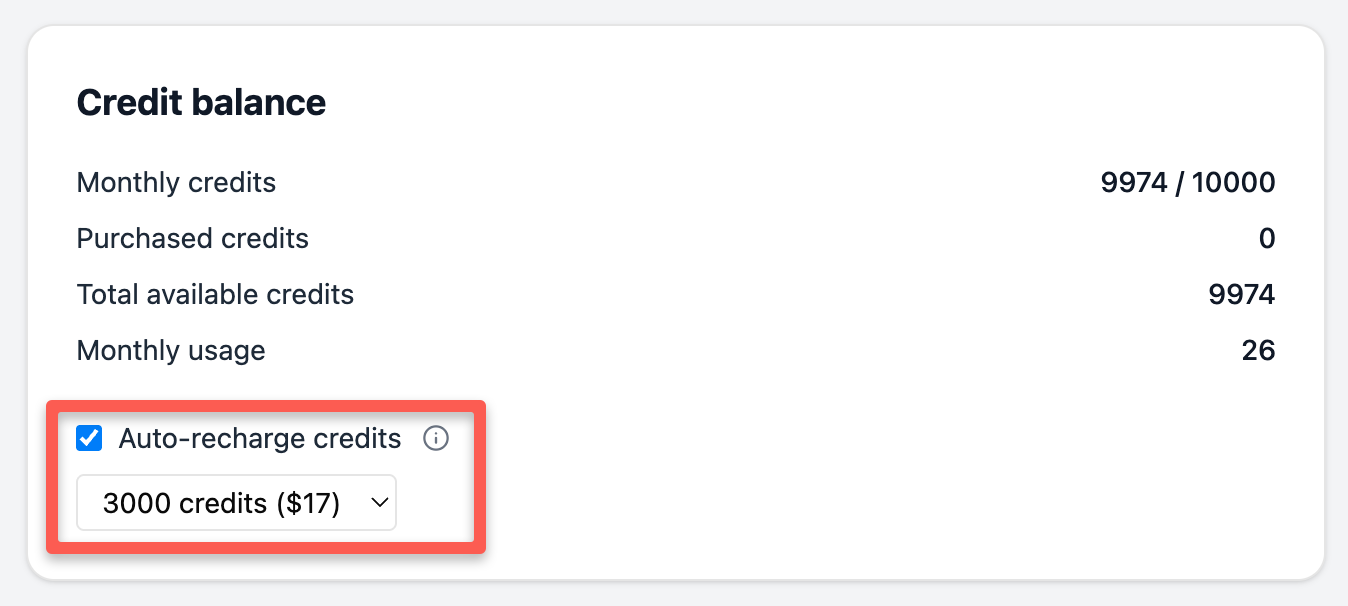
Step 3: Select a Credit Package
Choose the credit package that will be purchased automatically when your balance runs low.
Available packages:
- 1,000 credits ($7)
- 3,000 credits ($17)
- 9,000 credits ($37)
Select a package size that matches your typical usage patterns to minimize purchase frequency while avoiding large upfront costs.
How Auto-Recharge Works
Once enabled, Product Classifier monitors your total credit balance (monthly credits + purchased credits). When your balance drops to 100 credits or below, the system automatically:
- Charges your payment method on file
- Purchases the selected credit package
- Adds the credits to your purchased credit balance
- Sends a confirmation email
The purchase happens in the background without interrupting your API requests. Your service continues uninterrupted.
Credit Usage Priority
Remember that Product Classifier consumes credits in this order:
- Monthly credits first
- Purchased credits (including auto-recharge credits) second
Auto-recharge credits persist across billing cycles until consumed, unlike monthly credits which reset each cycle.
For complete details on how credits work, see Understanding Credits.
When Auto-Recharge Triggers
Auto-recharge triggers when your total available credits reach 100 or below:
Example scenarios:
Scenario 1: Monthly credits exhausted
- Monthly credits: 0 remaining
- Purchased credits: 100 remaining
- Total: 100 credits → Auto-recharge triggers
Scenario 2: During monthly cycle
- Monthly credits: 50 remaining
- Purchased credits: 40 remaining
- Total: 90 credits → Auto-recharge triggers
Scenario 3: Buffer exists
- Monthly credits: 500 remaining
- Purchased credits: 100 remaining
- Total: 600 credits → Auto-recharge does not trigger
Payment Requirements
Auto-recharge requires a valid payment method on file. If the automatic purchase fails due to payment issues:
- You’ll receive an email notification
- Your service will stop when credits reach zero
- You’ll need to update your payment method
Ensure your payment method stays current to avoid interruptions.
Alternative: Upgrade Your Plan
Instead of purchasing top-up credits, consider upgrading to a plan with a higher monthly credit allocation:
Starter Plan: 3,000 monthly credits for $19/monthPro Plan: 8,000 monthly credits for $39/month
If you consistently exhaust your monthly credits, upgrading may be more cost-effective than repeatedly purchasing top-up packages.
To upgrade, click Manage plan and billing on the Account / Billing page and select a new plan in the customer portal.
For details on plan features and pricing, see Pricing and Plans Explained.
Monitoring Your Balance
Track your credit usage to understand consumption patterns:
- Account / Billing page shows real-time balance and usage
- Email notifications alert you when auto-recharge triggers
- Transaction history available in the customer portal
Regular monitoring helps you:
- Verify auto-recharge is working correctly
- Adjust package size if needed
- Identify unusual usage spikes
- Determine if a plan upgrade makes sense
Disabling Auto-Recharge
To disable auto-recharge:
- Go to Account / Billing
- Uncheck the Auto-recharge credits checkbox
Your existing purchased credits remain available, but no automatic purchases will occur when your balance runs low.
Common Questions
When will I be charged?
The moment your total credit balance reaches 100 or below. The charge processes immediately and credits are added to your account within seconds.
Can I change my package size?
Yes. Update your selection in the Credit Balance section at any time. The new package size takes effect for the next auto-recharge trigger.
What if my payment fails?
You’ll receive an email notification. Update your payment method in the customer portal. Once your payment method is updated, you can re-enable auto-recharge to prevent future interruptions.
Do auto-recharge credits expire?
No. Purchased credits (including auto-recharge credits) persist across billing cycles until consumed.
Can I get a refund?
Auto-recharge purchases are final and non-refundable. Choose your package size carefully based on your usage patterns.
Next Steps
- Understanding Credits - Learn how credits work and are consumed
- Pricing and Plans Explained - Compare plans to see if upgrading makes sense
- Managing Your Subscription - Update payment methods and billing information
- Rate Limits & Usage Quotas - Understand limits beyond credit allocation