Understanding Classification History
The History page provides a centralized view of all product classifications performed across your account. Whether requests come from the Playground, API, or MCP server, they’re all logged here for review and analysis.
What the History Shows
The History page displays all classification requests made in the last 7 days by default, giving you visibility into:
- Which products were classified
- What categories were assigned
- Whether classifications succeeded or required fallback
- When and where each request originated
This helps you monitor classification accuracy, identify patterns in your product catalog, and troubleshoot issues.
Classification Sources
All classification requests appear in the History regardless of where they originated:
Playground - Classifications you run in the web-based testing interface
API - Programmatic classification requests from your application or integration
MCP server - Classifications initiated through the Model Context Protocol server
Each request shows its source, allowing you to track which system generated specific classifications.
History Columns
The History table displays five columns for each classification:
Product / Category
Shows the product description and resulting category. The selected category appears in bold text below the product description.
When no category was found (categoryFound: false), only the product description is displayed—no category information appears.
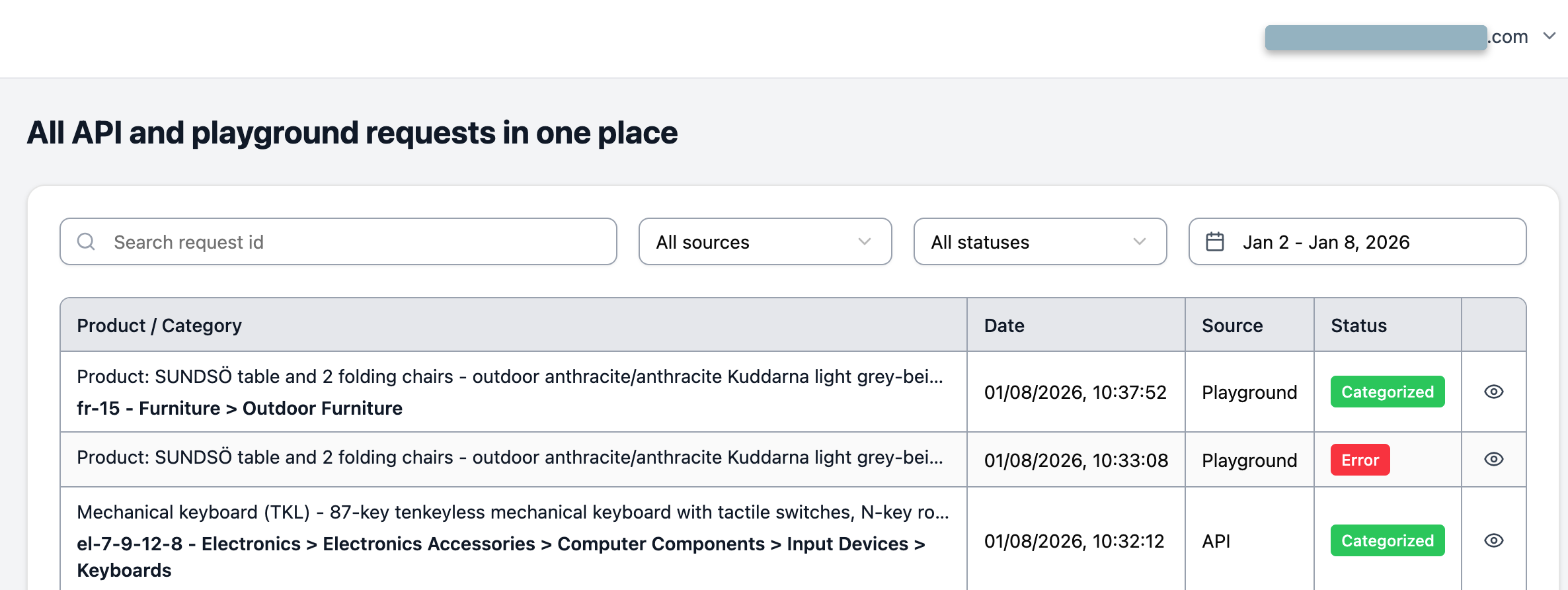
Date
The exact date and time of the classification request, displayed down to the second. This helps you correlate classifications with specific events or debugging sessions.
Format: YYYY-MM-DD HH:MM:SS
Source
Indicates where the classification originated:
- Playground - Run from the web interface
- API - Sent via HTTP request
- MCP server - Initiated through MCP
Status
A colored indicator showing the classification outcome:
- 🟢 Green - AI confidently selected a category
- 🟡 Yellow - Top-ranked category used when AI couldn’t decide
- ⚫ Gray - No category found
- 🔴 Red - Error occurred
For detailed explanations of what each status means and how to interpret patterns across your classifications, see Understanding Status Indicators.
View Action
The last column contains a View button for each request. Clicking this opens a modal with complete classification details.
For information about what details are available and how to use them for troubleshooting, see Viewing Request Details.
Pagination
The History table displays a limited number of entries per page. Use the pagination controls at the bottom-right to navigate through older requests.

Filtering and Searching
Filter and search capabilities help you find specific classifications quickly. You can narrow results by:
- Product description text
- Category assigned
- Date range
- Source (Playground, API, or MCP server)
- Status indicator
For complete details on available filters and search operators, see Filtering & Searching Requests.

Data Retention
The History page displays classifications from the last 45 days. Older requests are deleted and not visible in the interface.
If you need longer-term classification tracking, consider logging API responses in your own system or exporting History data regularly for analysis.
Next Steps
- Understanding Status Indicators - Learn what each colored indicator means
- Viewing Request Details - Explore the information available in request modals
- Filtering & Searching Requests - Master the search and filter capabilities
- Classification Strategies - Optimize your approach based on History insights